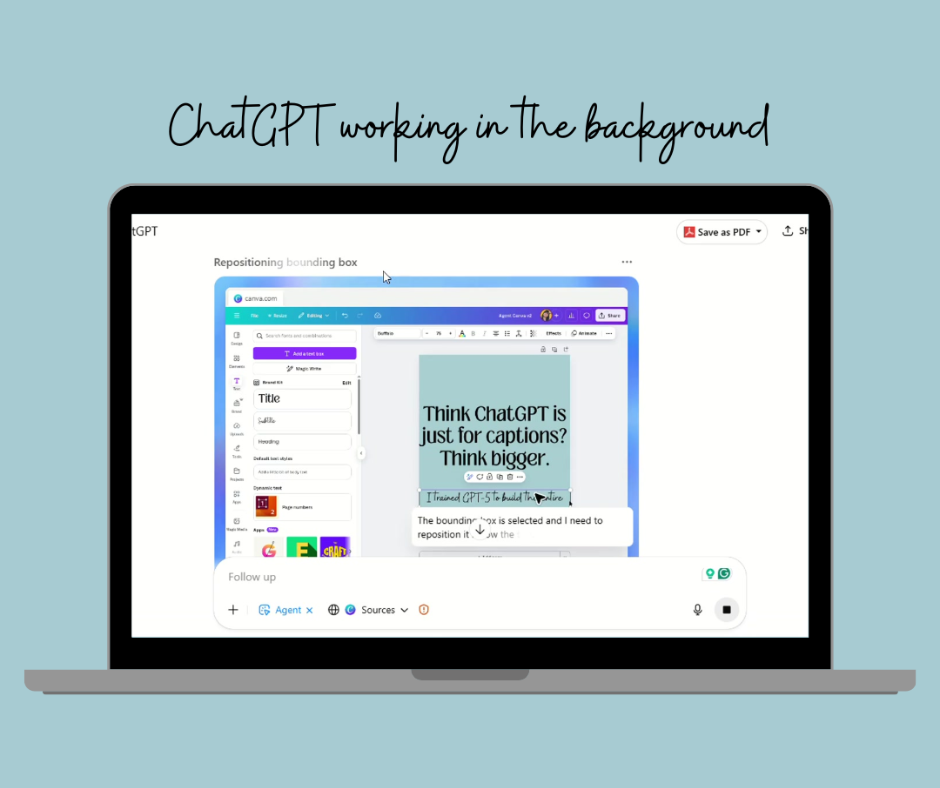
I Let My ChatGPT Agent Build My Instagram Carousel—It Did 90% of the Work
Yes, you read that right. While I was knee-deep in client work, my ChatGPT Agent was creating an Instagram carousel for me—slides, captions, and all. And no, this isn’t magic.…
Yes, you read that right. While I was knee-deep in client work, my ChatGPT Agent was creating an Instagram carousel for me—slides, captions, and all.
And no, this isn’t magic. It’s the result of training AI to think, plan, and execute like a teammate—not a tool. Let me walk you through what I did, how you can do the same, and why this changes everything about how we create content.
(as of Aug 2025) NOTE: If the Canva connector isn’t showing yet on your Plus account, it’s likely due to rollout delays, platform differences (web vs app), or minor setup issues. You’re not alone—many others have seen it appear after refreshing or switching browsers. Keep an eye out, and it should show up soon
The “Set It and Let It Work” Moment
I gave my ChatGPT one idea:
“Build me an 8-slide carousel using my framework.”
Then I left.
Came back 15 minutes later… → Slide titles and content? Done. → All I had to do was plug it into Canva and sprinkle in my visuals.
This is the new way of working—and it’s not exclusive to tech wizards or prompt engineers.
What Actually Happened Behind the Scenes
This isn’t just “ChatGPT made something cool.” This is: I trained ChatGPT to become my co-creator.
Let’s break it down.
What My ChatGPT Already Knew
Before this project, I had already trained my GPT-5 Agent with:
✔️ My ideal client profile ✔️ My carousel framework ✔️ My brand voice and messaging
When I gave it an instruction, it wasn’t starting from scratch. It already had context—so it knew exactly what to do, and how I like it done.
(Screenshot of ChatGPT window showing my framework.)
What I Actually Did (You Can Too)
Here’s the exact process you can follow to get your GPT-5 Agent doing 90% of the work for you:
Step 1: Enable Canva in ChatGPT
Go to Settings → Connectors → Enable Canva This allows your agent to directly open, edit, and create designs.
Step 2: Create a Canva Link With “Anyone Can Access”
So your agent can actually see and use your template.
Step 3: Start a Fresh Chat
If you’re new to using ChatGPT’ agent – start clean.
Step 4: Give a Clear, Structured Prompt
When sending your instructions
Always provide the Canva link with access enabled.
Use Canva’s own terms (page, brand fonts, title, subtitle, etc.). This way the agent will undestand the user interface when it gets into Canva.
Have your brand fonts and colors in your Canva Brand Kit (even the font size) so the agent can apply them automatically.
Prompt I Gave My Agent
In your chat have “Agent” mode on. Add a sample execution for better reference.
“Create an 8-page carousel on Canva. These are the instructions and a sample execution attached. Here’s the link: (canva link)
8-Page Content Flow: Press the “add page” button to add a new page. Page 1: Title: Think ChatGPT is just for captions? Think bigger. Subtitle: One line in, one bland caption out. No context. No strategy. No wonder it’s off.
Page 2: Title: The mistake: Using AI like a vending machine. Subtitle: One line in, one bland caption out. No context. No strategy. No wonder it’s off.
Page 3: Title: And that’s why your AI feels… generic. Subtitle: AI can’t read your mind. You have to teach it your story, your audience, and your goals.
Page 4: Title: AI can be your teammate. Subtitle: Train it with what you stand for—and it stops guessing and starts ideating, planning, and executing.
Page 5: Title: I built AI Agents for my business. Subtitle: No-code workflows + agents trained to plan my content, sort ideas, draft emails—even outline launches.
Page 6: Title: What AI and automations does for me now. Subtitle: → Builds my content calendar → Turns voice dumps into social posts → Organizes client systems → Even suggests new offers
Page 7: Title: How to start Subtitle: ✓ Learn to prompt with context & clarity ✓ Know exactly who you serve & why ✓ Ask your AI to do more than write
Page 8: Title: Ready to see ChatGPT unlocked? Subtitle: Comment “TRAIN” and I’ll send you my free GPTs + guide to train AI to think with you.”
It won’t be perfect—but 90% of the job is done.
(This was the finished caption by the agent)
With AI, the magic is in adding your personality, your spin, and the little touches only you can bring.
That’s how you make AI your co-creator, your-co brain, not just a robot.
When your AI has all this? It doesn’t just write—it creates.
Bonus Tip: Make This a Repeatable Workflow
This didn’t just save me time—it gave me a blueprint to use over and over again.
And now? I’m using the same method to have AI: → Build content calendars → Organize my business backend → Even suggest new offers
It’s no longer “how can I write more?” It’s “how can my AI system think with me?”
Turn This Into Your Everyday Workflow
I built Digital Time Freedom: Unlocked to teach this exact process—how to train AI and give it the right context so it works like a true teammate.
Here’s what my my students are saying:
“It’s perfect for overthinkers like me!”
“I know how to tailor it to me and exactly how to talk to to it and I almost don’t even need prompts! We’ve gotten conversational..”
“You’ve really helped me get it to sound like me and understand my messaging and audience”
If you want to learn how to train and give AI the right context so it can plan, write, and organize for you—freeing you up to focus on what only you can do—that’s exactly what I walk you through inside the program.
You’ve already seen the steps in action here—now imagine applying them to all your content, across your entire business.